Pro Line Fusion database updates, without the USB shuffle.
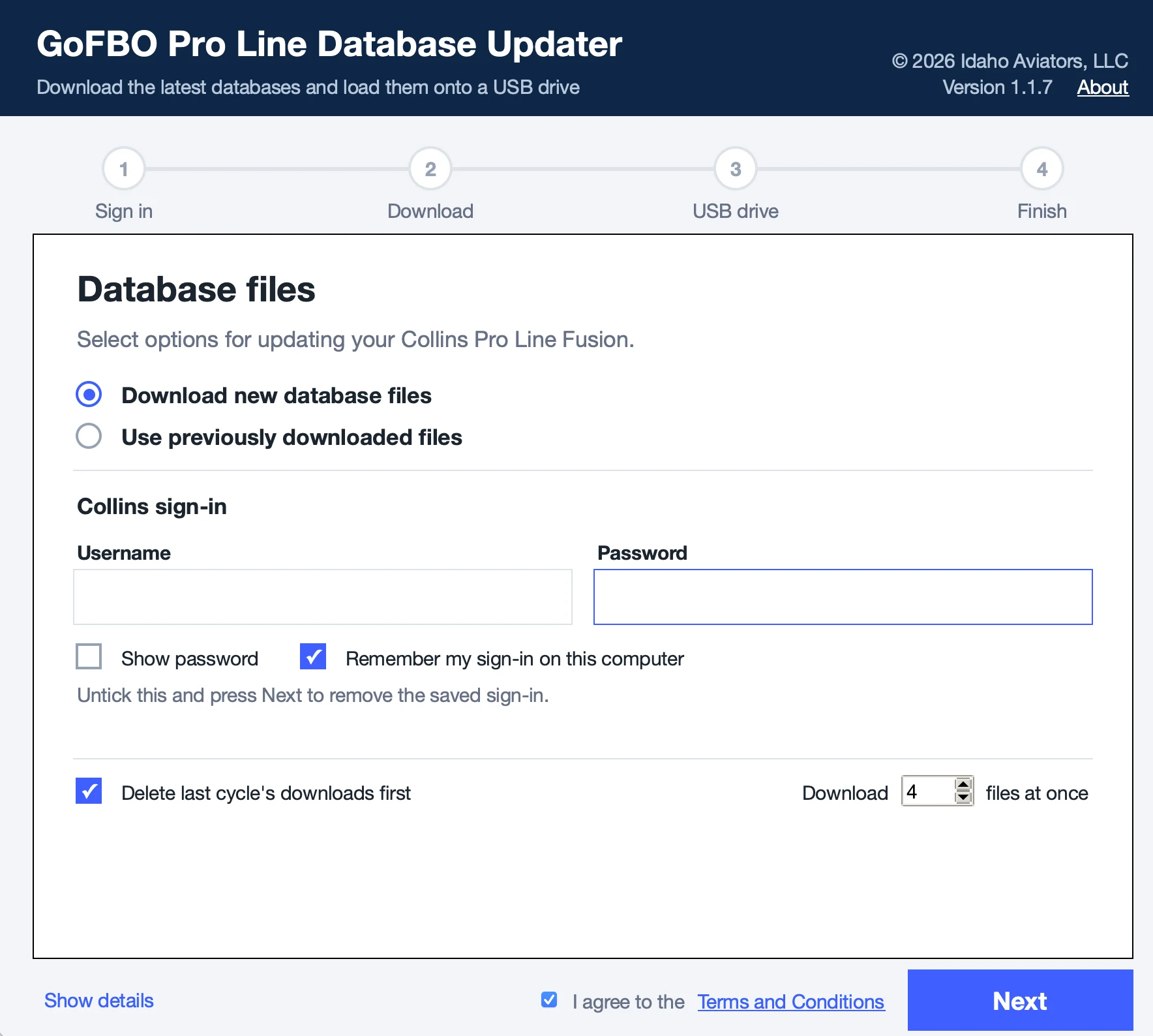
The GoFBO Pro Line Database Updater signs in to your own Collins account, downloads this cycle's databases, and prepares, loads and checks the USB drive for you. Free for Mac and Windows.
What it does.
- Signs in to your Collins account
With the user name and password you enter. You approve the Duo prompt on your phone as usual.
- Downloads this cycle's databases
Every database file for the current cycle, and clears out last cycle's downloads when you ask it to.
- Prepares the USB drive
Formats the drive if you choose, unpacks the files, copies them and checks each one, with a progress bar the whole way.
- Opens Jeppesen Distribution Manager
If you load Jeppesen data too, it can open JDM when the drive is ready.
What you need.
- A Mac or a Windows computer
- Google Chrome (the updater uses it to sign in to Collins)
- Your own Collins Aerospace customer portal account with a database subscription for your aircraft
- A USB drive for the aircraft
- Jeppesen Distribution Manager, only if you load Jeppesen data
Your password stays on your computer. It's saved in the Mac Keychain or Windows' protected storage, and only after Collins accepts it. Nothing is sent to GoFBO.
Your data comes only from your account. The updater doesn't include or share any database.
Always check in the aircraft. After loading, confirm the databases and their effective dates on the avionics, following Collins' and your aircraft's procedures.
Download.
GoFBO Pro Line Database Updater, version 1.1.7. Free, no GoFBO account needed. The app asks you to accept the same terms the first time it opens.
Opening it the first time
Open the zip and drag the app to Applications. If macOS says it can't check the app, Control-click it and choose Open, or go to System Settings › Privacy & Security and click Open Anyway. You only do this once.
Open the zip and run the app. If Windows shows Windows protected your PC, click More info, then Run anyway. You only do this once.
Terms of use and disclaimer
Last updated October 13, 2026
This software ("the Software") is provided free of charge by Idaho Aviators, LLC ("Idaho Aviators"), and is offered through GoFBO. By installing or using the Software you agree to these terms. If you do not agree, do not use the Software.
1. Free, as is, no warranty
The Software is provided "AS IS" and "AS AVAILABLE", without warranty of any kind, express or implied, including any warranty of merchantability, fitness for a particular purpose, accuracy, reliability, non-infringement, or uninterrupted or error-free operation. Idaho Aviators does not promise that the Software will work with your equipment, your accounts, or any future version of any website or database.
2. You are responsible for your aircraft and your data
The Software only helps move files. It does not check that a database is current, correct, complete, or suitable for your aircraft or avionics. You are solely responsible for confirming that every database loaded into any aircraft system is the correct one, is current, loaded correctly, and is verified in the aircraft as required by the equipment manufacturer, the data provider, your operator, and the applicable regulations. Nothing in the Software replaces your judgment, your procedures, or the manufacturer's instructions. Do not rely on the Software for any decision affecting the safety of flight.
3. USB drives and your files
The Software can erase or format a USB drive and can delete previously downloaded files on your computer when you ask it to. Check the drive and folder shown before you continue. Idaho Aviators is not responsible for lost, damaged, or overwritten files, for a drive that stops working, or for any problem with your computer.
4. Your accounts and third-party services
The Software signs in to third-party services (such as the Collins Aerospace customer portal) only with the user name and password you enter, and only on your computer. You are responsible for having the right to use those accounts and the downloaded data, and for following the terms of each service and of any agreement you have with its provider. Those providers may change or restrict their services at any time, and they may decide that automated access is not allowed; an account could be limited or suspended as a result. Idaho Aviators is not responsible for any such action. Keep your credentials private; they are stored only on your computer, and Idaho Aviators does not receive them.
5. No affiliation
The Software is an independent tool. It is not made by, approved by, endorsed by, sponsored by, or affiliated with Collins Aerospace, RTX Corporation, Jeppesen, The Boeing Company, or any other company whose name appears in it. All product names, trademarks, and databases belong to their owners and are used only to describe what the Software works with. The Software does not include or distribute any database.
6. Limitation of liability and release
To the fullest extent allowed by law, you release Idaho Aviators, LLC, its owners, members, managers, employees, contractors, and affiliates from all claims, and Idaho Aviators will not be liable for any damages of any kind, including direct, indirect, incidental, special, consequential, or punitive damages, loss of data, loss of use, loss of profit, damage to equipment or aircraft, injury, or death, arising from or related to your use of, or inability to use, the Software, even if Idaho Aviators was told such damage was possible. If the law does not allow a complete exclusion, Idaho Aviators' total liability will not exceed the amount you paid for the Software, which is zero.
7. Indemnity
You agree to defend and hold harmless Idaho Aviators from claims brought by anyone else that come from your use of the Software or your breach of these terms.
8. Ownership and use
Copyright (c) 2026 Idaho Aviators, LLC. All rights reserved. You may use the Software for your own flight operations at no charge. You may not sell it, or change it and present it as the work of Idaho Aviators or GoFBO. Third-party components included in the Software remain under their own licenses.
9. No support, changes, and ending
Idaho Aviators has no duty to provide support, updates, or fixes, and may change or withdraw the Software or these terms at any time. You may stop using the Software at any time.
10. General
These terms are governed by the laws of the State of Idaho, and the courts located in Idaho are the place for any dispute, except where the law of your location requires otherwise. If any part of these terms is not enforceable, the rest stays in effect. These terms are the whole agreement about the Software.
Questions about the updater? Email [email protected]. Collins Aerospace, Pro Line Fusion, Jeppesen and other names belong to their owners and are used only to describe what the updater works with.